 Screen Recorder
How-to guide
How to record your screen on a Mac
Three ways to record your screen on a Mac, from the built-in Shift-Command-5 toolbar to an app with automatic zoom and an editor, and when to use each.
The short answer
To record your screen on a Mac, press Shift-Command-5, choose Record Entire Screen or Record Selected Portion, and click Record. Click the Stop button in the menu bar when you finish, and macOS saves a MOV file to the desktop. For automatic zoom, a camera, captions, and editing, use a screen recording app such as Screen Recorder.
Steps
- 1.Open the Screenshot toolbar. Press Shift-Command-5. The Screenshot toolbar opens at the bottom of the screen.
- 2.Choose what to record. Click Record Entire Screen to record the whole display, or Record Selected Portion and drag the frame around the part you need.
- 3.Set the options. Click Options to choose a microphone, a timer, where to save the file, and whether to show mouse clicks.
- 4.Start the recording. Click Record. For the whole screen, you can also click any screen to start recording it.
- 5.Stop the recording. Click the Stop button in the menu bar, or press Command-Control-Escape.
- 6.Find the file. macOS saves the recording as a MOV file, on the desktop by default. Click the thumbnail that appears to trim it at once.
Which way should you record your screen?
A Mac gives you a screen recorder for free, and for many jobs it is enough. Choose by what happens after you stop:
- You send the clip as it is. Use the built-in Shift-Command-5 toolbar. It is fast and needs nothing new.
- You trim the ends and send it. Use the built-in toolbar, then trim in the thumbnail or in QuickTime Player.
- The video must look finished: zoomed, captioned, with your camera and a clean background. Use a screen recording app with an editor, such as Screen Recorder.
How do you record with the built-in Screenshot toolbar?
The steps above follow Apple’s guide to recording the screen. The toolbar records the whole screen or a selected part, with an optional microphone, a timer, and visible mouse clicks.
The result is a MOV file, which most video services accept.
How do you record with QuickTime Player?
Open QuickTime Player and choose File > New Screen Recording. The same toolbar opens. After you stop, the recording opens in QuickTime Player, where you can trim it, split it into clips, and put the clips in a new order.
When does a screen recording app help?
The built-in tools record the screen exactly as it is. That shows a problem in three places once the video plays in a browser or on a phone:
- Small text. A full display shrinks to fit the player, and menus become hard to read. An app with automatic zoom zooms toward the cursor.
- No face and no captions. A camera and captions help a viewer follow a demo or a lesson.
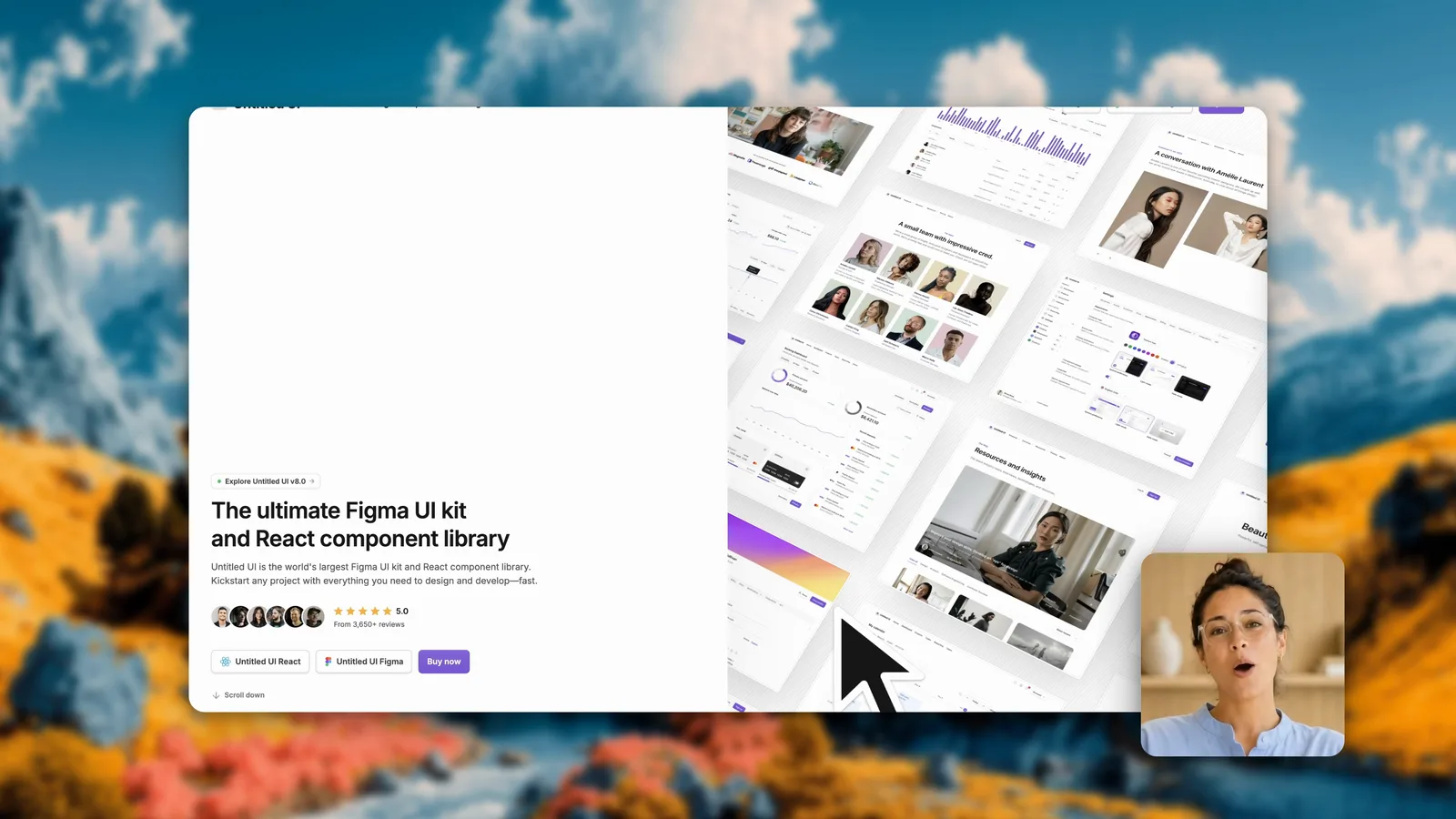
- A plain frame. A background, padding, and rounded corners make a recording look ready for a landing page or a launch post.
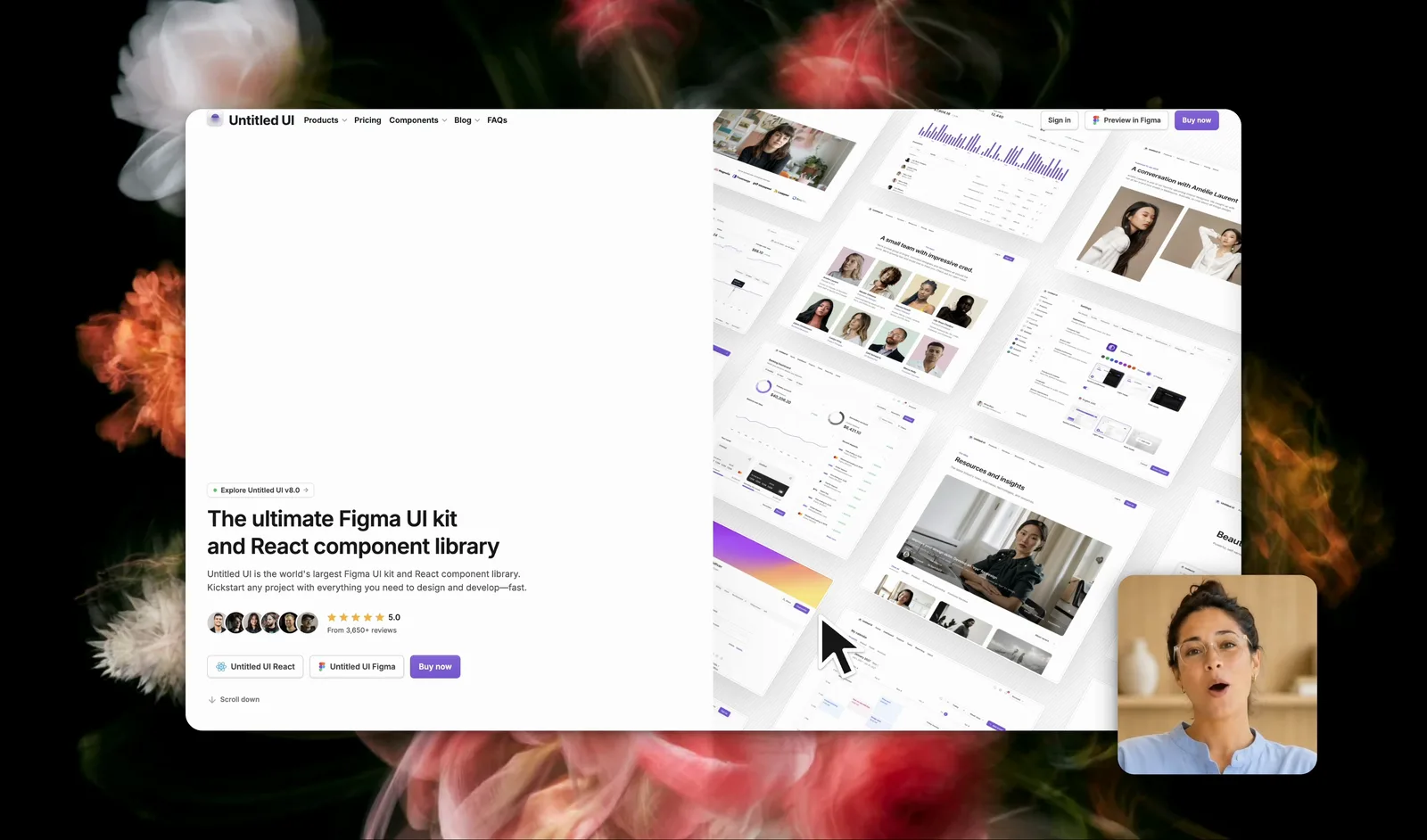
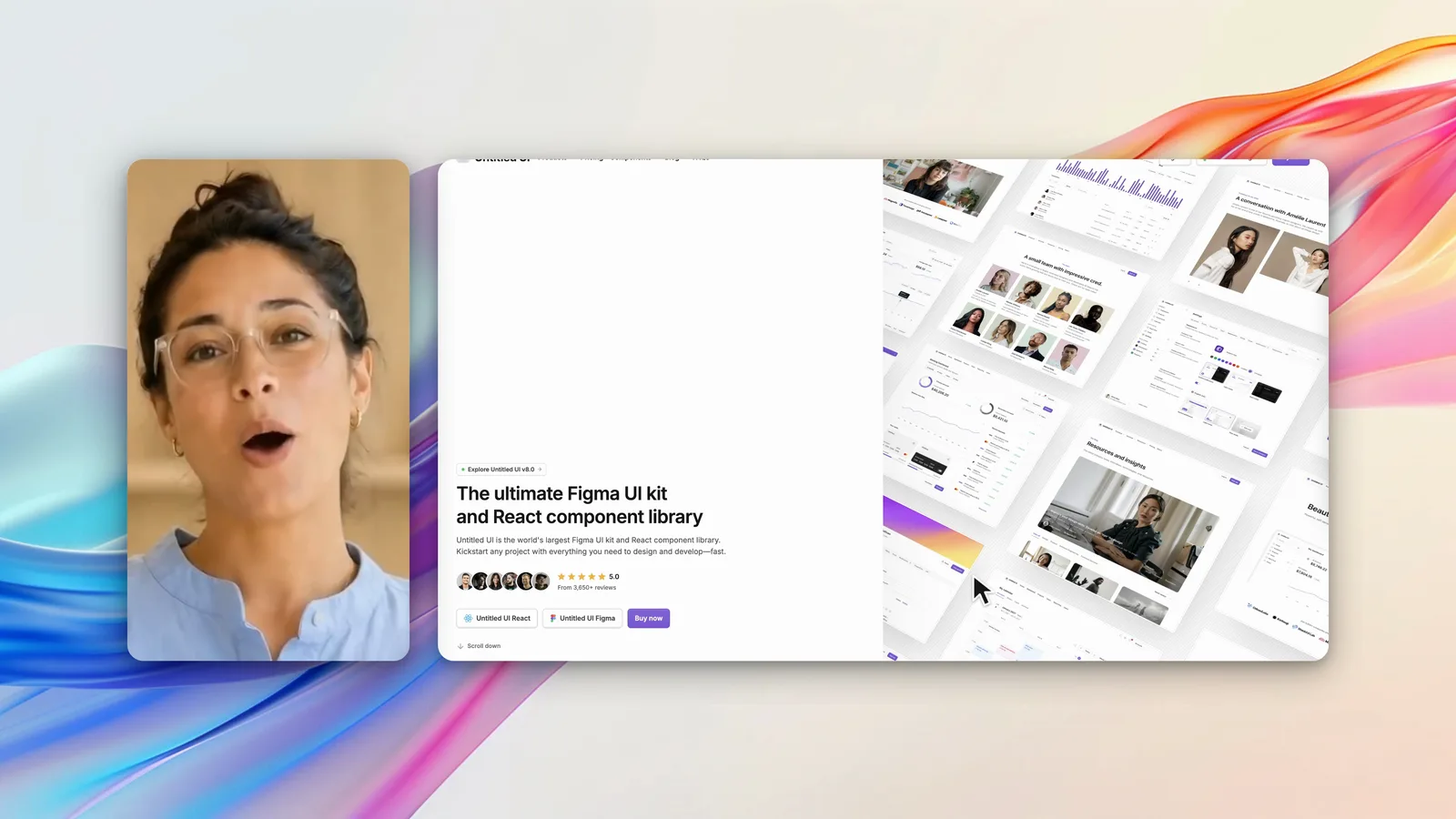
Screen Recorder records the screen, the cursor, your camera, and your microphone or the system sound. When you stop, the recording opens in a timeline editor, and you export an MP4. Recordings stay on your Mac.
How do you record with Screen Recorder?
- Open Screen Recorder.
- Choose Full screen, or choose Select area and drag a rectangle. See how to record your full screen and how to record part of your screen.
- Choose your microphone or system sound, and your camera.
- Turn on Auto zoom if you want the video to follow your clicks.
- Record, then select Stop. The editor opens with your recording on the timeline.
Tip: Before any recording, turn on Do Not Disturb. A notification that slides in during a demo is the most common reason to record again.
Frequently asked questions
What is the shortcut to record the screen on a Mac?
Press Shift-Command-5 to open the Screenshot toolbar, then choose Record Entire Screen or Record Selected Portion and click Record.
Where do Mac screen recordings go?
The Screenshot toolbar saves recordings to the desktop by default. Choose another folder in the Options menu of the toolbar.
How do I stop a screen recording on a Mac?
Click the Stop button in the menu bar, or press Command-Control-Escape.
Can I record my screen on a Mac with QuickTime Player?
Yes. Open QuickTime Player and choose File > New Screen Recording. It opens the same Screenshot toolbar, and QuickTime Player can then trim and split the recording.
How do I make a Mac screen recording with zoom and captions?
The built-in tools record the screen as it is. An app such as Screen Recorder records the cursor as separate data, adds an automatic zoom that follows it, makes English captions on the Mac, and opens the recording in a timeline editor.
Keep learning