 Screen Recorder
How-to guide
How to record your full screen on a Mac
Capture an entire Mac display with Screen Recorder, then trim and export the result as an MP4.
The short answer
To record a full Mac screen in Screen Recorder, open the app, choose Full Screen, pick the display you want, and start recording. Press Stop when finished. Screen Recorder opens the clip in its built-in editor, where you trim the recording and export an MP4 at the source size.
Steps
- 1.Grant Screen Recording permission. Launch Screen Recorder on your Apple silicon Mac. Grant Screen Recording permission in System Settings under Privacy & Security when macOS asks for it.
- 2.Choose Full Screen. Select Full Screen in the Screen Recorder start window, then choose which display to capture if more than one is connected.
- 3.Clear the screen first. Close unrelated windows and quiet notifications before recording, because a full-screen capture includes everything on the display.
- 4.Record the actions. Start the recording and work at a steady pace, pausing briefly after each significant click so the viewer can follow what changed.
- 5.Stop and edit. Press Stop. Screen Recorder opens the clip in its editor, where you trim the dead time from each end and export an MP4.

When is full screen the right choice?
Record the full screen when the task moves between windows, uses the Dock or the menu bar, or depends on system dialogs. A full display keeps that context visible, which an area recording would cut away.
Choose area recording instead when the task happens inside one window. A smaller region keeps text readable when the video is watched on a phone.
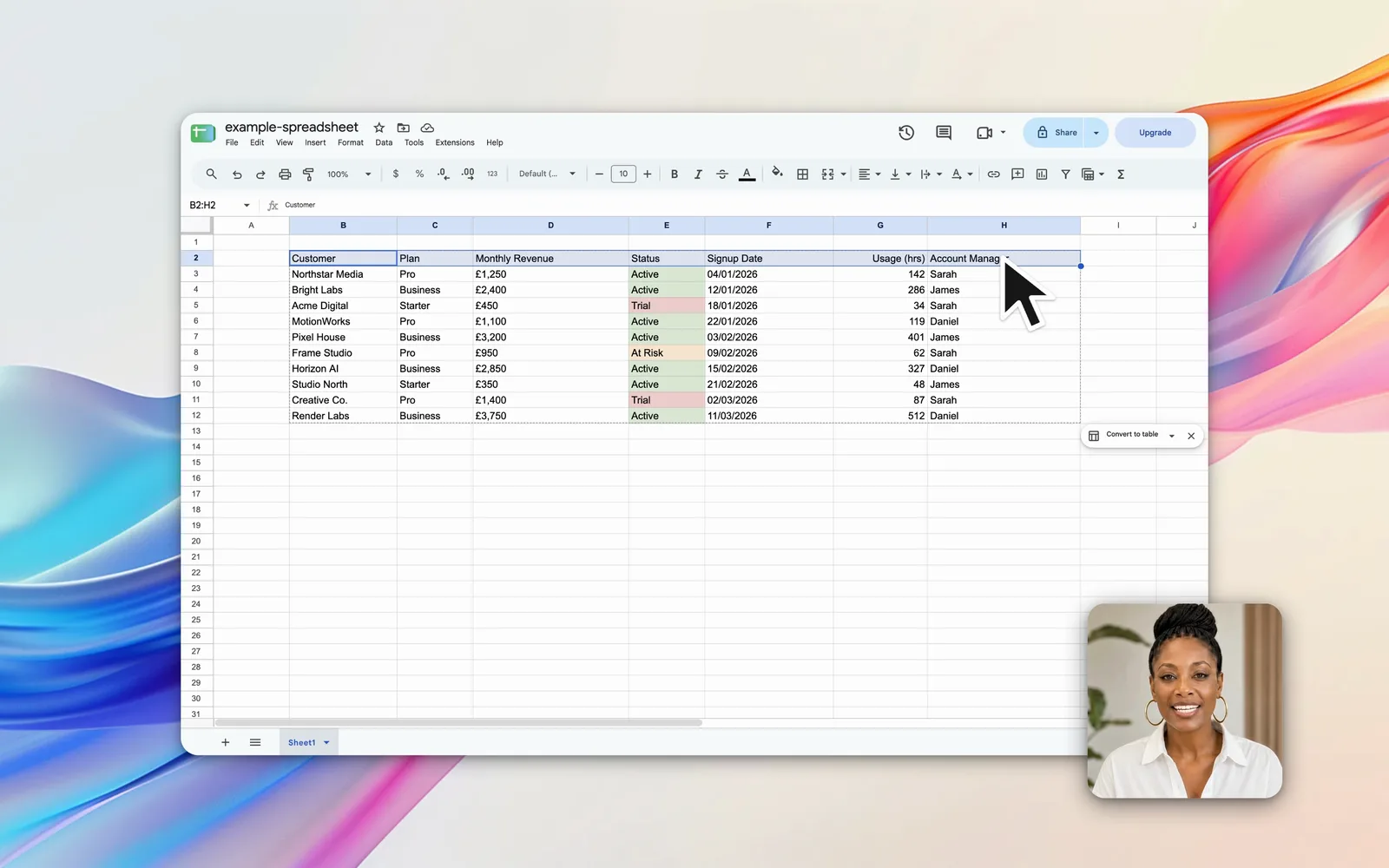
How do you keep a full-screen recording clean?
A full-screen capture records everything on the display, including any private content. Close unrelated windows and browser tabs, quit chat apps, and turn on Do Not Disturb so no notification banner reaches the video.
Check the desktop as well. Wallpaper and file names on the desktop appear in the recording whenever a window is minimised or closed.
Tip: Record a few seconds first and watch it back. This catches a stray notification or an open window before the real take.
What happens after you press Stop?
Screen Recorder opens the recording in its editor immediately, with no import step. Trim the setup from the start, trim the pause at the end, then export an MP4 at the source dimensions. Screen Recorder writes the file to the Movies/Screen Recorder folder on your Mac.
Frequently asked questions
How do you record your whole screen on a Mac?
Screen Recorder captures a full display on Apple silicon Macs, with no account and no watermark. macOS also offers full-screen recording through Shift-Command-5, though that tool provides no editor.
Can you record two displays at once?
Screen Recorder captures one display per recording. Choose which display to capture in the start window, and record again for a second display.
Will notifications appear in a full-screen recording?
Yes. A full-screen capture includes any notification banner that appears. Turn on Do Not Disturb before recording to keep banners out of the video.
What file format does Screen Recorder export?
Screen Recorder exports MP4. Keeping the source dimensions produces the sharpest result, and the exported file is saved to your Mac.