 Screen Recorder
Blog
How we built a Mac screen recorder with React Video Editor
The architecture of Screen Recorder, from ScreenCaptureKit and a Rust addon to an editable cursor, automatic zoom, local Whisper captions, and an on-device MP4 render.
The short answer
Screen Recorder is an Electron app. A Rust addon records the screen with ScreenCaptureKit and the cursor with a macOS event tap, the renderer records the camera with MediaRecorder, and the app turns the files into a React Video Editor timeline. Whisper makes captions on the Mac, and the SDK renders the MP4 on the device with WebCodecs.
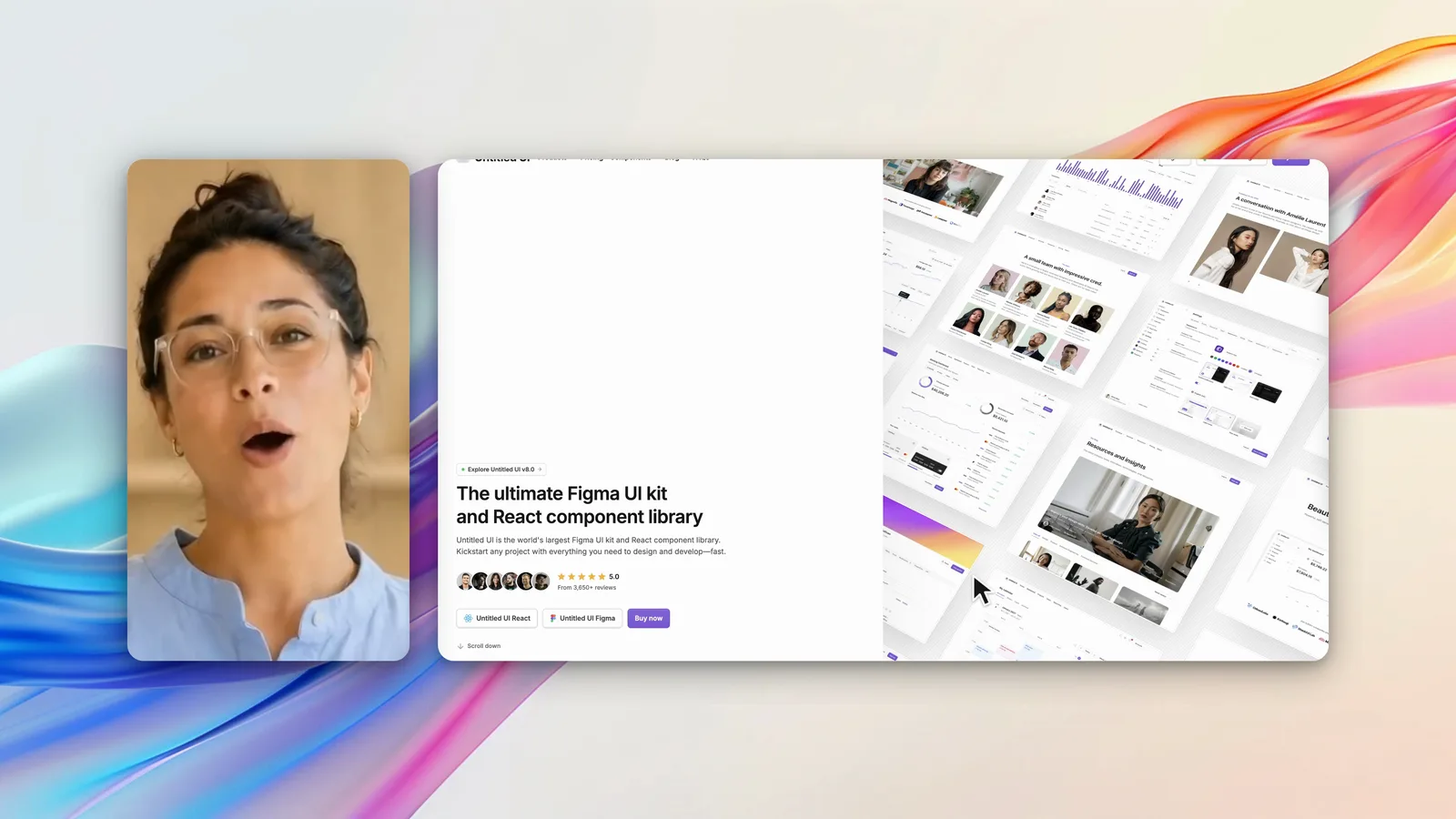
Screen Recorder records your Mac screen and opens the recording in a full editor the moment you stop. The editor is React Video Editor, an SDK for building video editors in React. This post explains how the parts fit together, and the problems we met on the way.
 The Screen Recorder editor is built with the React Video Editor SDK.
What are the parts?
The app has three layers:
- A Rust addon records the screen with ScreenCaptureKit, records the cursor, and runs Whisper for captions. Electron loads it as a native Node-API module.
- Electron owns the windows, the files, and a small local media server.
- A React app shows the recorder, records the camera, and hosts the React Video Editor component.
The data path is short: ScreenCaptureKit writes an MP4, the app wraps it and the cursor data in an editor state, and the SDK renders the edit back to an MP4.
Why Electron and not a native web view?
Our first prototype used a native WebKit view. Video encoding worked, but the macOS web view at the time had no AudioEncoder or AudioDecoder, and the SDK checks for both before it renders. Electron ships Chromium, which has all four WebCodecs interfaces. Everything that touches the operating system stays native, in Rust.
How does the screen capture work?
Electron loads the Rust addon in a worker thread, so a long native call never blocks the main process. The addon exposes startCapture, stopCapture, and a few permission checks.
The capture filter leaves out the app’s own process. The recording bar and the camera preview never appear in the video. In the default quality mode, our own AVAssetWriter writes H.264 video with a bitrate that grows with the pixel count and the frame rate, and AAC audio.
H.264 needs even pixel dimensions, and a selected area on a Retina display rarely gives them. The app snaps the area to the physical pixel grid before it shows the border, so the border and the recorded pixels are the same rectangle:
// H.264 uses an even raster. Change the far edge before the app shows or
// stores the area, so the border and the recorded pixels use one rectangle.
if ((right - left) % 2 !== 0) right += right < displayWidthPixels ? 1 : -1;
if ((bottom - top) % 2 !== 0) bottom += bottom < displayHeightPixels ? 1 : -1;
The Rust side repeats the same check, and it refuses to record if the display scale changed after you selected the area.
How is the cursor recorded?
A flat video cannot change its cursor. So the addon records the cursor as data, with a listen-only CGEventTap that sees mouse moves, drags, and clicks. Each sample has a time, a position from 0 to 1 inside the recorded area, and a visible flag. The data goes into a JSON file next to the video.
When the cursor data is available, the capture hides the system cursor:
let pointer = PointerRecorder::start(CaptureBounds { /* the recorded area */ })
    .unwrap_or(None);
config.set_shows_cursor(pointer.is_none());
The editor then draws the cursor from the data. That is why you can change the cursor size and style and highlight clicks after you record. If the Input Monitoring permission is off, the event tap cannot start, and the app falls back to the cursor in the picture.
How does automatic zoom work?
React Video Editor has a zoom item that can follow a pointer track. With Auto zoom on, the app adds one zoom item from the first click to one second after the last click, and the SDK moves the frame toward the cursor with eased motion:
zoomItem = {
  type: ItemType.ZOOM,
  content: 'Cursor zoom',
  from: screenItem.from + zoomFrom,
  durationInFrames: zoomUntil - zoomFrom,
  styles: {
    zoomLevel: 2,
    zoomType: 'follow',
    easing: 'ease-in-out',
    followPointerItemId: screenItem.id,
    followTransitionDuration: 0.8,
  },
};
The zoom is an ordinary timeline item, so the user can move it, change it, or delete it. We chose one following zoom over one zoom per click: it gives a calmer video, and it is easier to edit.
How do the camera and the screen stay in sync?
The camera is recorded in the React app with MediaRecorder, in one-second chunks that Electron appends to a file. The screen is recorded in Rust. Each side stamps its start time on the same clock, and the editor state places the camera with one offset:
const offsetSeconds = (cameraStartedAt - screenStartedAt) / 1000;
const mediaStartTime = Math.max(0, -offsetSeconds);
// The screen file is the project clock. Independent media timers and frame
// rounding must not let the camera item finish before or after the screen.
const durationInFrames = screenItem.durationInFrames - from;
A camera file from MediaRecorder can report an infinite duration until the player seeks to its end, so the app seeks once and keeps the measured duration as a fallback.
How does the recording become an editor timeline?
The app builds a React Video Editor state from the files: a screen track with the cursor data, a camera track, a zoom track, and a captions track. It sets a default background, padding, and corner radius, and it passes the state to the ReactVideoEditor component.
The editor reads media over HTTP. Our first test with a custom protocol URL gave a black preview, so Electron runs a small server on 127.0.0.1 with a random port. Every media URL carries a random token, and the server answers byte-range requests, so the preview can seek in a long file.
How do local captions work?
The Rust addon also links whisper.cpp with Metal. The app downloads a quantised English base model of about 60 MB one time, checks its SHA-256 hash, and keeps it in the app data folder. After a recording with a microphone, macOS converts the audio to 16 kHz mono, Whisper transcribes it off the main thread, and the app groups the words into captions for the SDK’s caption track.
Whisper can invent words, for example “you”, in silence. The addon skips a segment that is probably not speech:
// Whisper can invent words, for example "you", for silence. Skip a
// segment that is probably not speech.
if segment.no_speech_probability() > NO_SPEECH_LIMIT {
    continue;
}
How is the video exported?
The app turns on the SDK’s web render. React Video Editor renders the composition inside the app with Remotion’s web renderer and WebCodecs, and prefers hardware encoding. The result is an MP4, and the video never leaves the Mac.
What does the app not do yet?
- Keep the edit in the project. Each recording is a
.ascreenpackage with the screen video, the cursor data, and the camera. Opening a project starts the edit again from the recording. - Record the microphone and the system sound together. One recording takes one of the two.
If you build a video product in React, read about the React Video Editor SDK. To see the result, try Screen Recorder or read how automatic zoom works.
Frequently asked questions
What is React Video Editor?
React Video Editor is a commercial SDK for building video editors in React. It is built on Remotion, and it supplies the timeline, the panels, the preview, and the render. Screen Recorder uses it for its whole editor.
Why does Screen Recorder use Electron and not a native Swift app?
The editor is a React app that needs WebCodecs, including AudioEncoder and AudioDecoder, to render video. During our first tests, the WebKit view on macOS did not have the audio encoder, and Electron's Chromium had all four codec interfaces. The capture code is native Rust.
How does Screen Recorder make the cursor editable?
It records the cursor position and each click with a listen-only macOS event tap, hides the system cursor in the video, and draws the cursor again in the editor from the data. The cursor size, style, and click effect can then change after recording.
Does Screen Recorder upload video to render it?
No. The React Video Editor SDK renders the MP4 inside the app with WebCodecs and hardware encoding, so the video never leaves the Mac.
Keep learning