 Screen Recorder
Automatic zoom
A screen recorder
that zooms for you.
Screen text is small, and a full-screen recording shrinks it further on a laptop or a phone. Screen Recorder records your cursor and your clicks, and zooms the video toward the action with smooth, eased motion.
The short answer
Screen Recorder is a Mac screen recorder with automatic zoom. Turn on Auto zoom before you record, and the editor adds a 2× zoom that follows your cursor from your first click to your last. You can change the zoom level and speed, or add zooms by hand on the timeline.
Why zoom a screen recording?
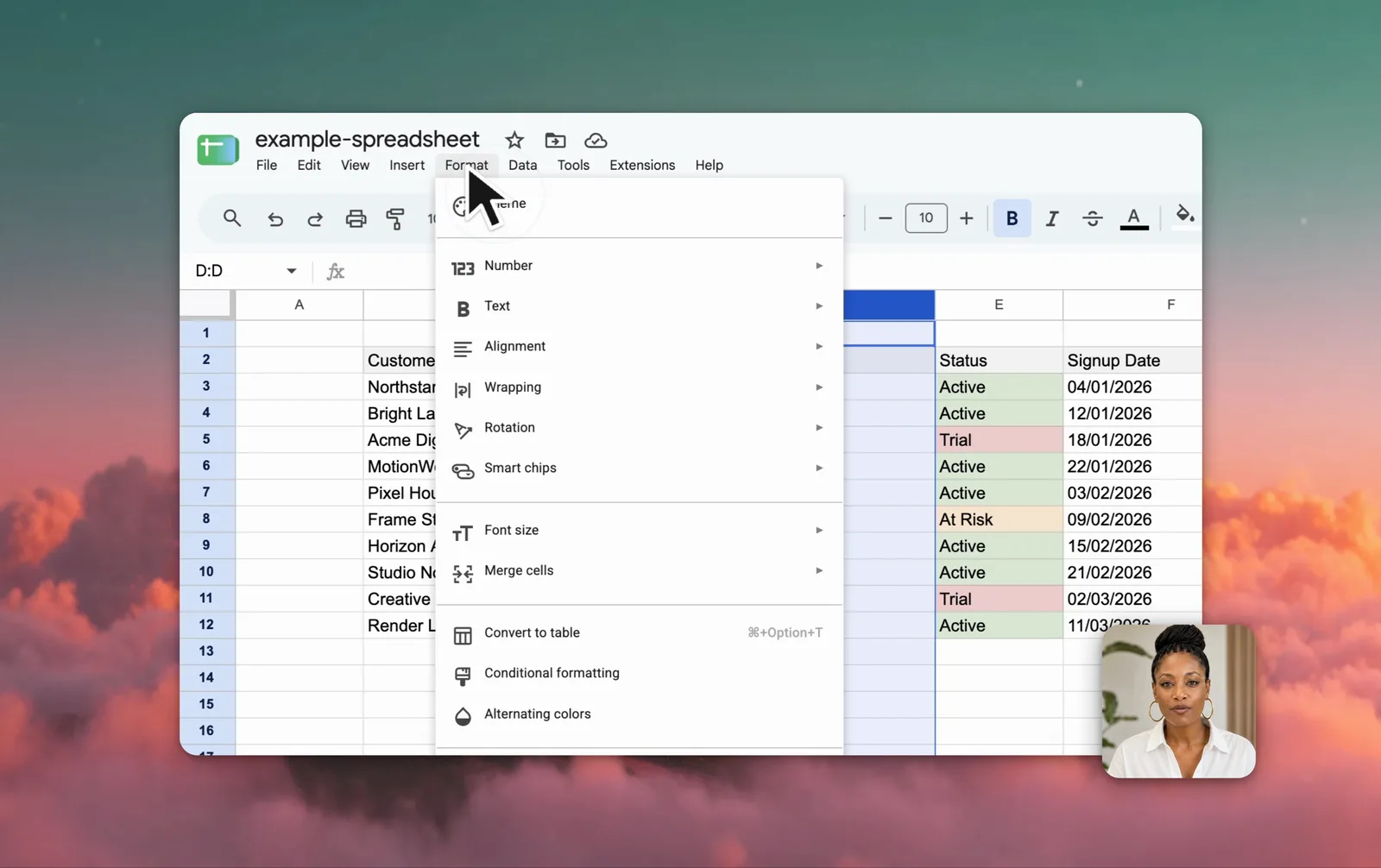
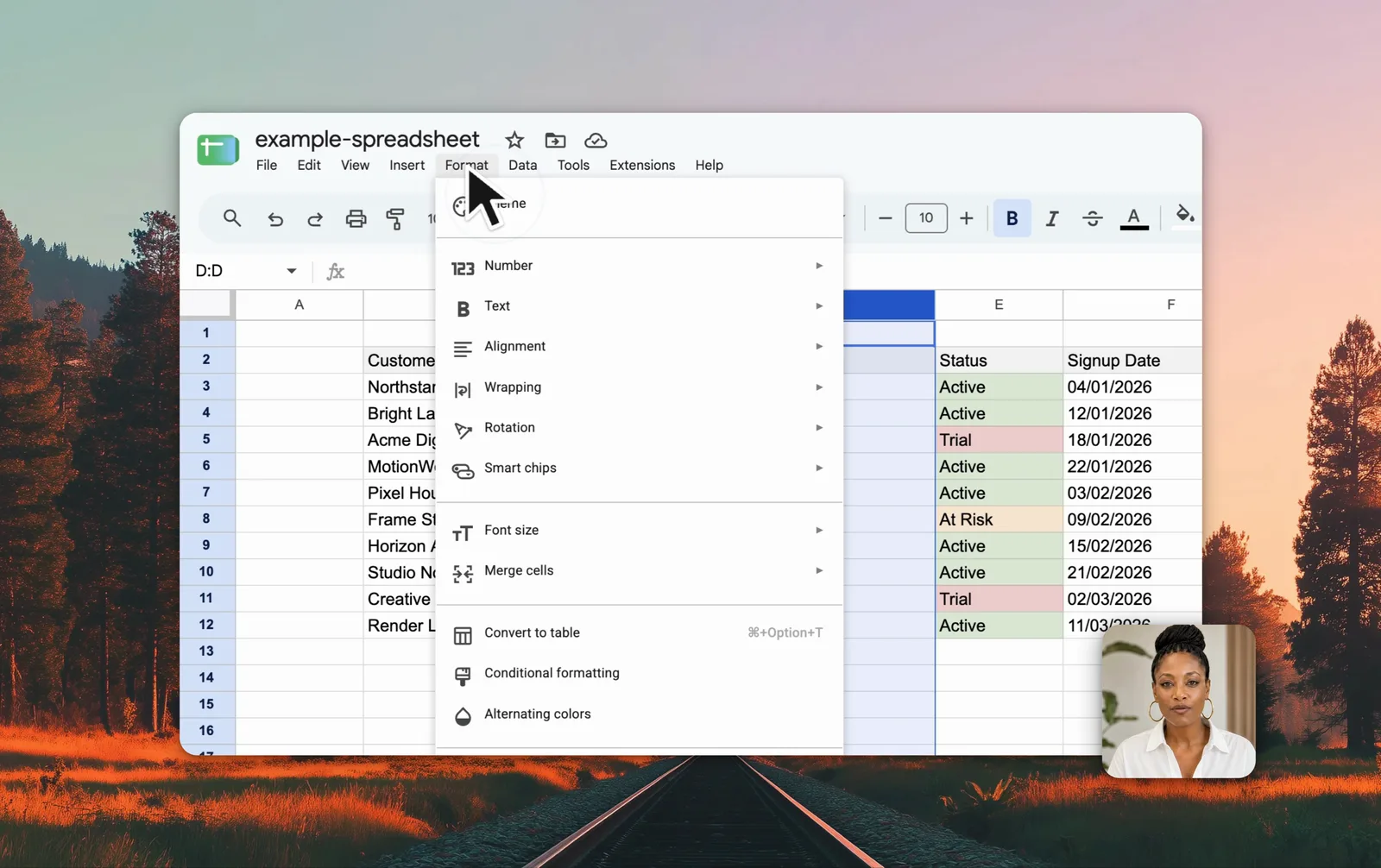
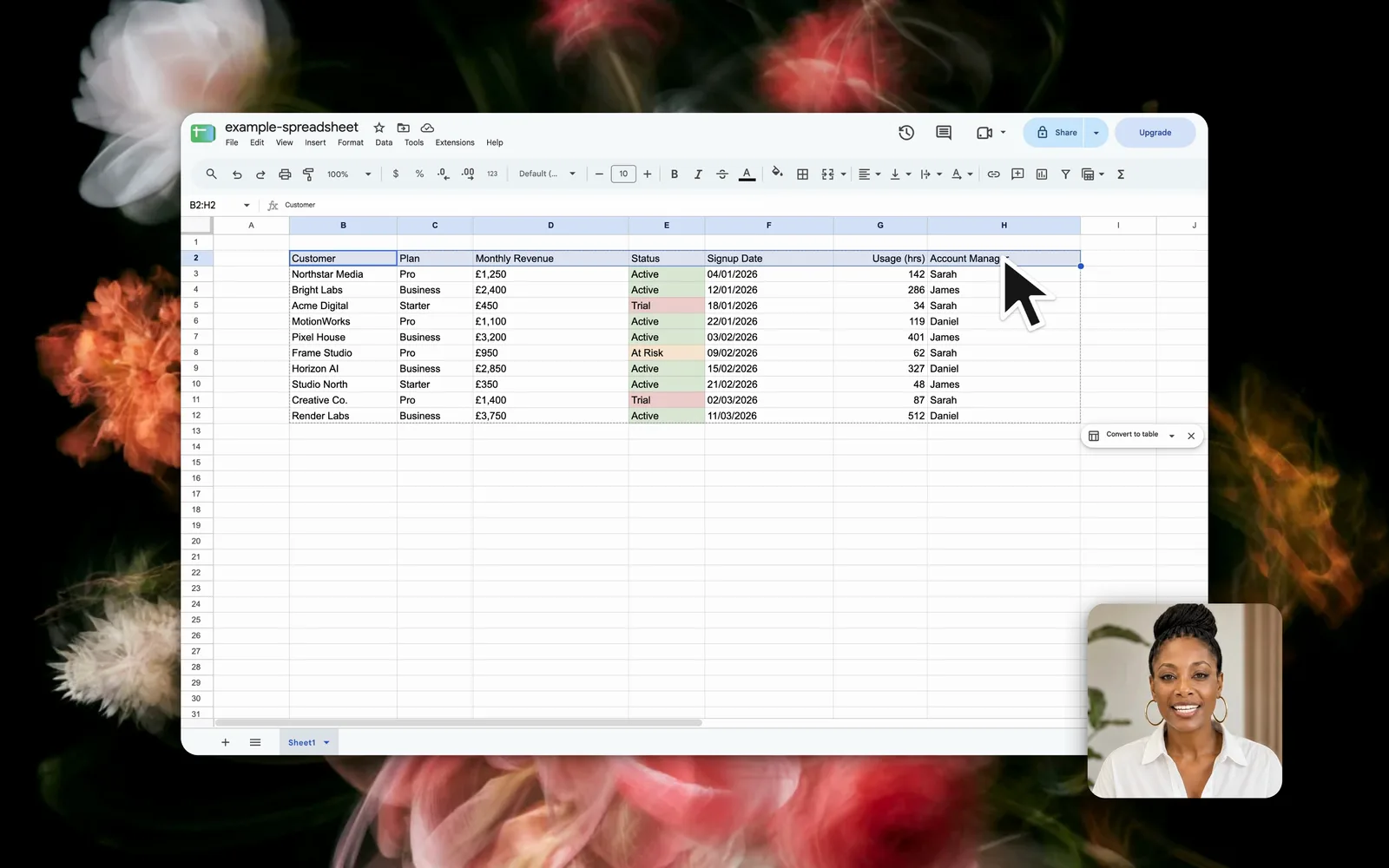
A Mac display has far more pixels than a video player in a browser, a help centre, or a phone. When the whole display shrinks to fit, menu labels and table values become too small to read. A zoom brings the part of the screen that matters back to a readable size, and it shows the viewer where to look.
A manual zoom takes time in an editor: you find each click, add a zoom, and set its start, end, and position. Automatic zoom does the first version for you, from the data that the app records while you work.
How does automatic zoom work in Screen Recorder?
If you did not click, the zoom covers the middle part of the recording.
Because the cursor is data and not part of the picture, the editor also lets you change the cursor size and style, hide it, and highlight each click after you record.
How do you turn on automatic zoom?
- Open Screen Recorder.
- Turn on the Auto zoom switch on the recorder page. It is off by default.
- Select Full screen or Select area, and record.
- Click where you want the viewer to look. The clicks set where the zoom starts and ends.
- Select Stop. The editor opens with the zoom on the timeline.
Screen Recorder needs the Input Monitoring permission to record the cursor. The app asks for it at the first start. Without it, the zoom cannot follow the cursor.
How do you edit the zoom?
To remove the zoom, delete the item, or record with Auto zoom off and add zooms by hand.
How do you get a good automatic zoom?
- Click with purpose. The first and last clicks set the zoom, so do not click on the desktop before you start the task.
- Move the cursor slowly. The frame follows the cursor, so a calm pointer gives a calm video.
- Record an area, not the whole display, when the task stays in one window. A smaller area needs less zoom. See how to record part of your screen.
- Watch the zoom once before you export, and shorten it where the viewer needs the full view.
What does automatic zoom not do?
Screen Recorder adds one zoom that follows the cursor across the clicks. It does not make a separate zoom for each click, and it does not smooth the path of the cursor itself. For more control, add zooms by hand where the story needs them.
To see how other Mac apps handle zoom, read the Screen Recorder Index or the Screen Studio comparison.
Questions
What is an auto zoom screen recorder?
An auto zoom screen recorder records where the cursor goes and where you click, then zooms the video toward that part of the screen. Small text stays readable, and the viewer sees where to look without manual editing.
How does automatic zoom work in Screen Recorder?
Screen Recorder records the cursor and your clicks as separate data. With Auto zoom on, the editor adds one cursor zoom at 2× that starts at your first click, follows the cursor, and ends just after your last click.
Can I change or remove the automatic zoom?
Yes. The zoom is an item on the timeline. Change the zoom level from 1.1× to 3× and the zoom speed, move or shorten the item, delete it, or add Zoom In, Zoom Out, In & Out, and Shake zooms by hand.
Does automatic zoom work on imported videos?
No. Automatic zoom needs the cursor data that Screen Recorder saves while it records. On an imported video, add zooms by hand from the Zoom panel.
Why does the zoom not follow my cursor?
Screen Recorder needs the Input Monitoring permission to record the cursor. Without it, the cursor is part of the video picture, and the editor cannot follow it. Turn on the permission in System Settings, then record again.
Keep reading