 Screen Recorder
How-to guide
How to export an MP4 from a screen recording
Turn a finished Screen Recorder timeline into an MP4 you can upload or send.
The short answer
To export an MP4 in Screen Recorder, play the timeline through once to check the edit, select Export, keep the source dimensions for the sharpest result, and choose a destination folder. Screen Recorder writes an MP4 to your Mac, and no upload or account is required.
Steps
- 1.Review the timeline. Play the edit from beginning to end. Check that each cut lands cleanly and that no private information appears in any frame.
- 2.Select Export. Choose Export in the Screen Recorder editor to open the export options.
- 3.Keep the source dimensions. Leave the output size at the source dimensions unless the destination requires a specific aspect ratio. Scaling down softens screen text.
- 4.Choose a destination. Pick the folder for the finished file. Screen Recorder saves recordings to Movies/Screen Recorder by default.
- 5.Open the file before sharing. Play the exported MP4 once. This final check catches an accidental cut or a notification that reached the recording.
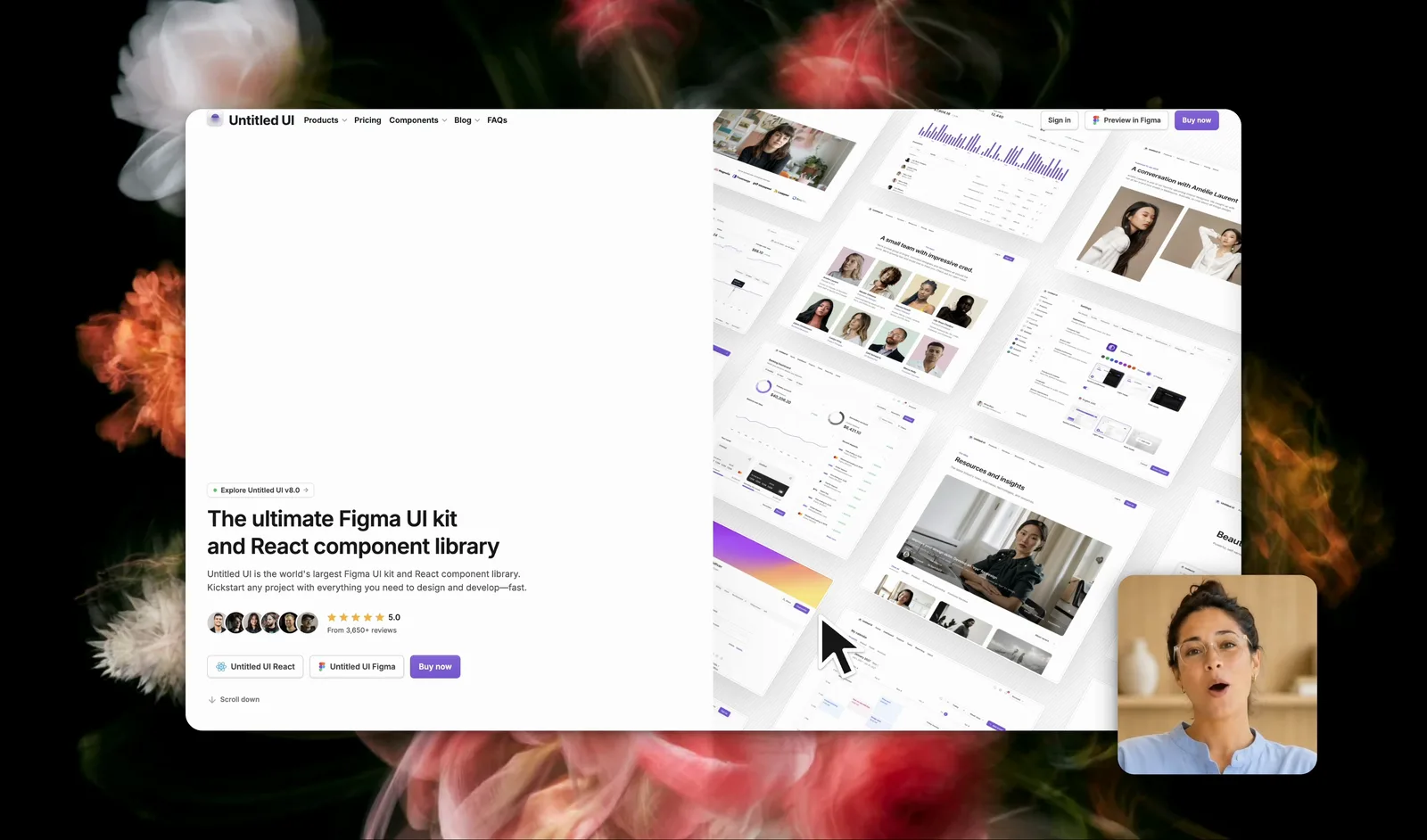
What should you check before exporting?
Play the timeline once from beginning to end. An export repeats whatever is on the timeline, so a cut that lands half a second late stays in the finished file.
Watch for private content in particular: a visible email address, a customer name, an open password manager, or a bookmark bar full of internal links. Screen recordings leak this more often than any other format, because the whole interface is in frame.
Why keep the source dimensions?
Screen text is made of thin strokes, and scaling a recording down thickens and blurs them. Exporting at the size you captured keeps that text legible.
Change the dimensions only when the destination requires it, for example a vertical frame for a social platform.
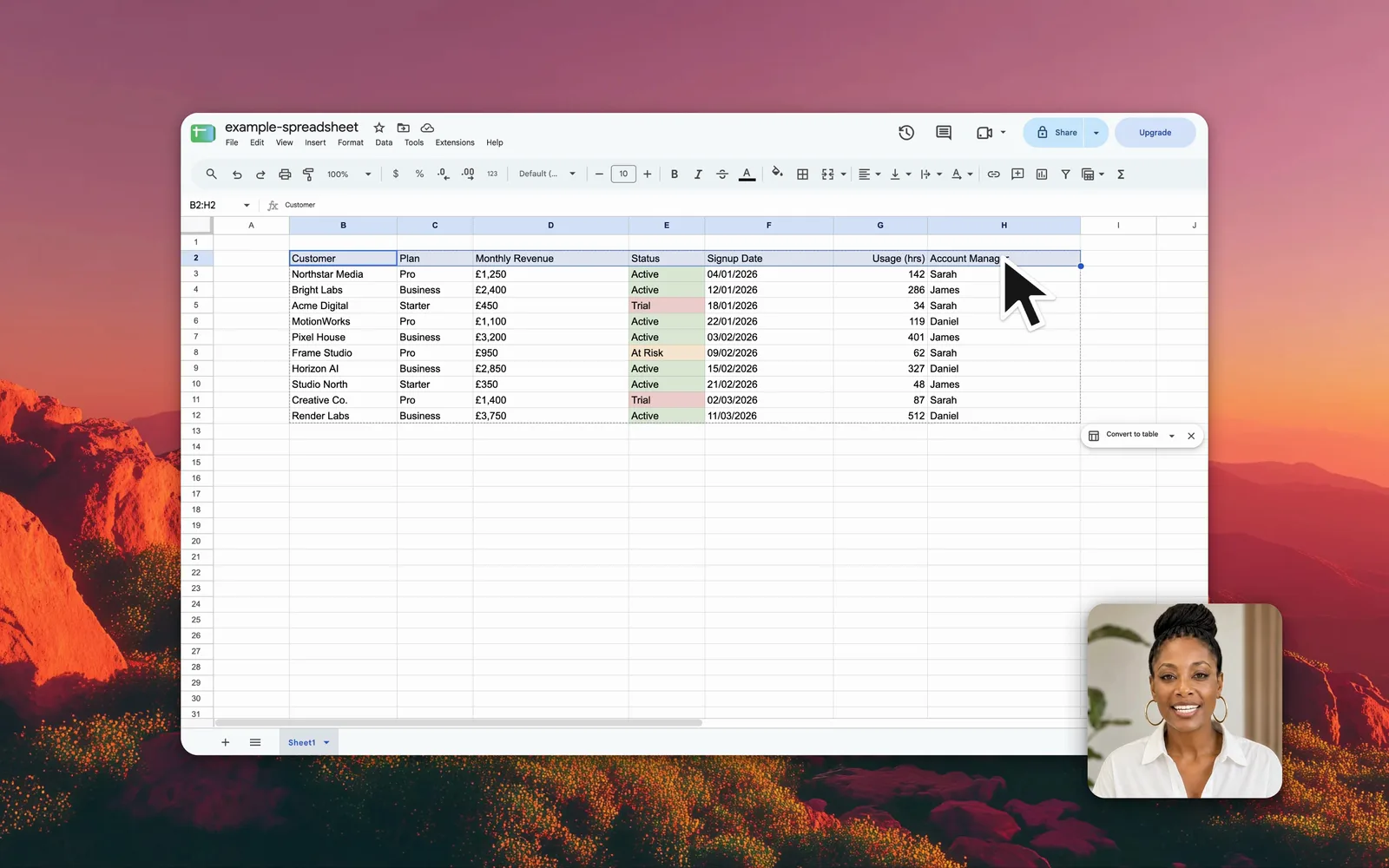
Where does the exported file go?
Screen Recorder writes the MP4 to the folder chosen during export, and defaults to Movies/Screen Recorder on your Mac. The file is a standard MP4, so it uploads to YouTube, Slack, or Notion without conversion.
Tip: Open the exported MP4 before sharing it. Watching the real file catches problems that the timeline preview hides.
Frequently asked questions
What format does Screen Recorder export?
Screen Recorder exports MP4, which uploads directly to YouTube, Slack, Notion, and the major social platforms without conversion.
Does exporting upload the recording anywhere?
No. Screen Recorder exports on your Mac and the file stays on the computer. No account is required and nothing is sent to a server.
What export size should you choose for a screen recording?
Keep the source dimensions. Screen text is thin, and scaling a recording down blurs it. Change the size only when the destination demands a specific aspect ratio.
Is there a watermark on the exported video?
No. Screen Recorder adds no watermark to the exported video.