 Screen Recorder
Screen recording for
How to make a product demo video on a Mac
Plan, record, and edit a product demo video that shows one real problem solved, with automatic zoom, a camera, and captions.
The short answer
A good product demo video solves one real problem from start to finish in under two minutes. Open on the problem, record a selected area so interface text stays readable, let automatic zoom follow your clicks, add your camera and captions, and export an MP4. On a Mac, Screen Recorder does each of these steps in one app.
What should a demo actually show?
Show the product solving one real problem from beginning to end. A demo that tours the interface shows what the product contains without showing why any of it matters.
Open on the problem rather than on the product. A viewer who recognises their own situation in the first few seconds stays for the answer.
How do you order the steps?
Follow the order a new user would meet the product, not the order the team built it. Internal structure rarely matches the path someone takes on their first day.
Take the shortest honest route to the result. Skipping a genuine step to look fast produces a demo that breaks the moment someone tries it.
Write the steps down before you record. Three to six steps is a good size for one demo. If you need more, you probably have two demos.
How do you record a product demo video on a Mac?
- Prepare the screen. Use a demo account with realistic data. Close notifications, private tabs, and anything with a customer name.
- Choose the area. In Screen Recorder, choose Select area and drag a rectangle around the browser or app window. See how to record part of your screen.
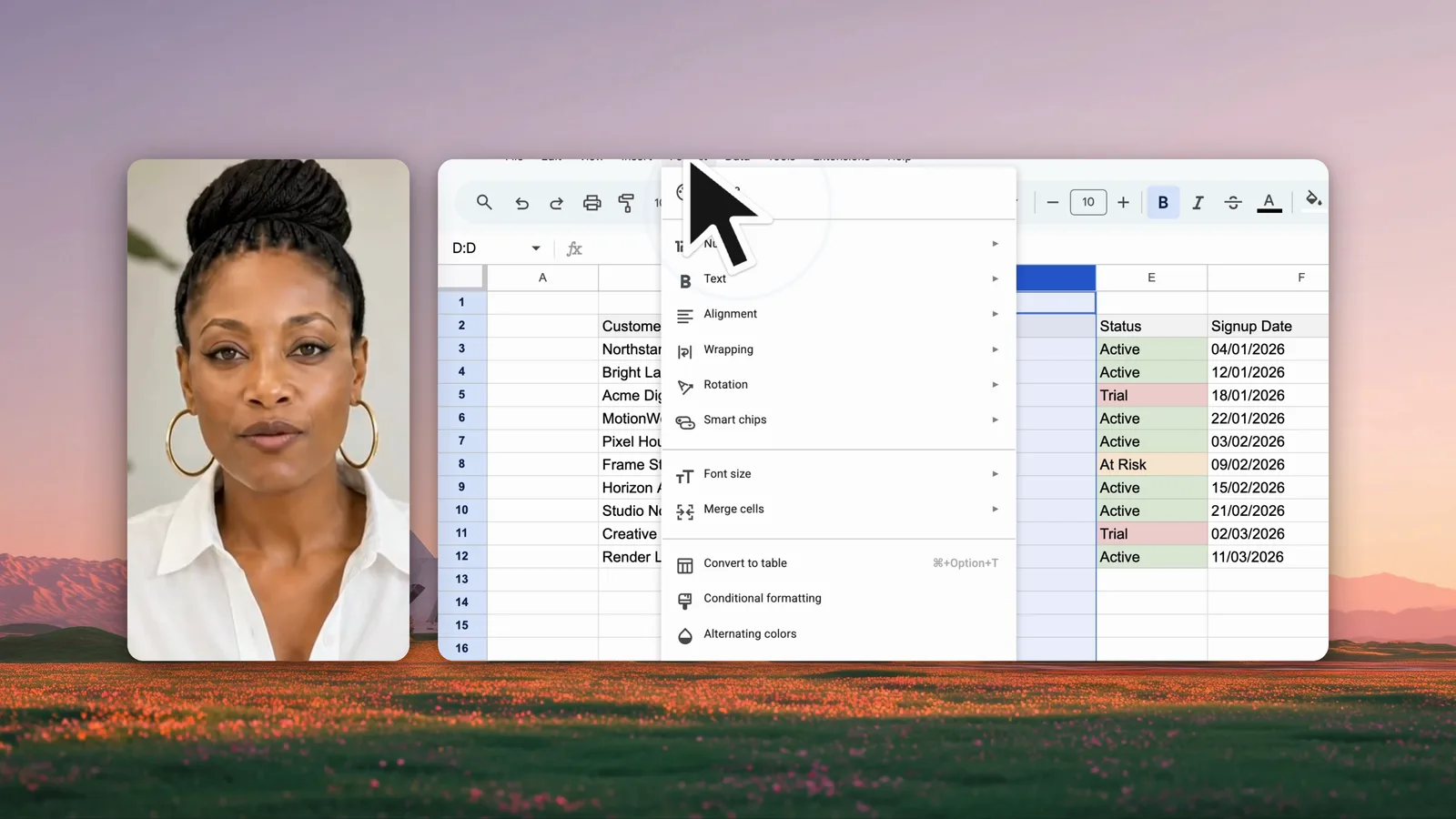
- Turn on Auto zoom. The editor then adds a zoom that follows your cursor between your first and last click. See how automatic zoom works.
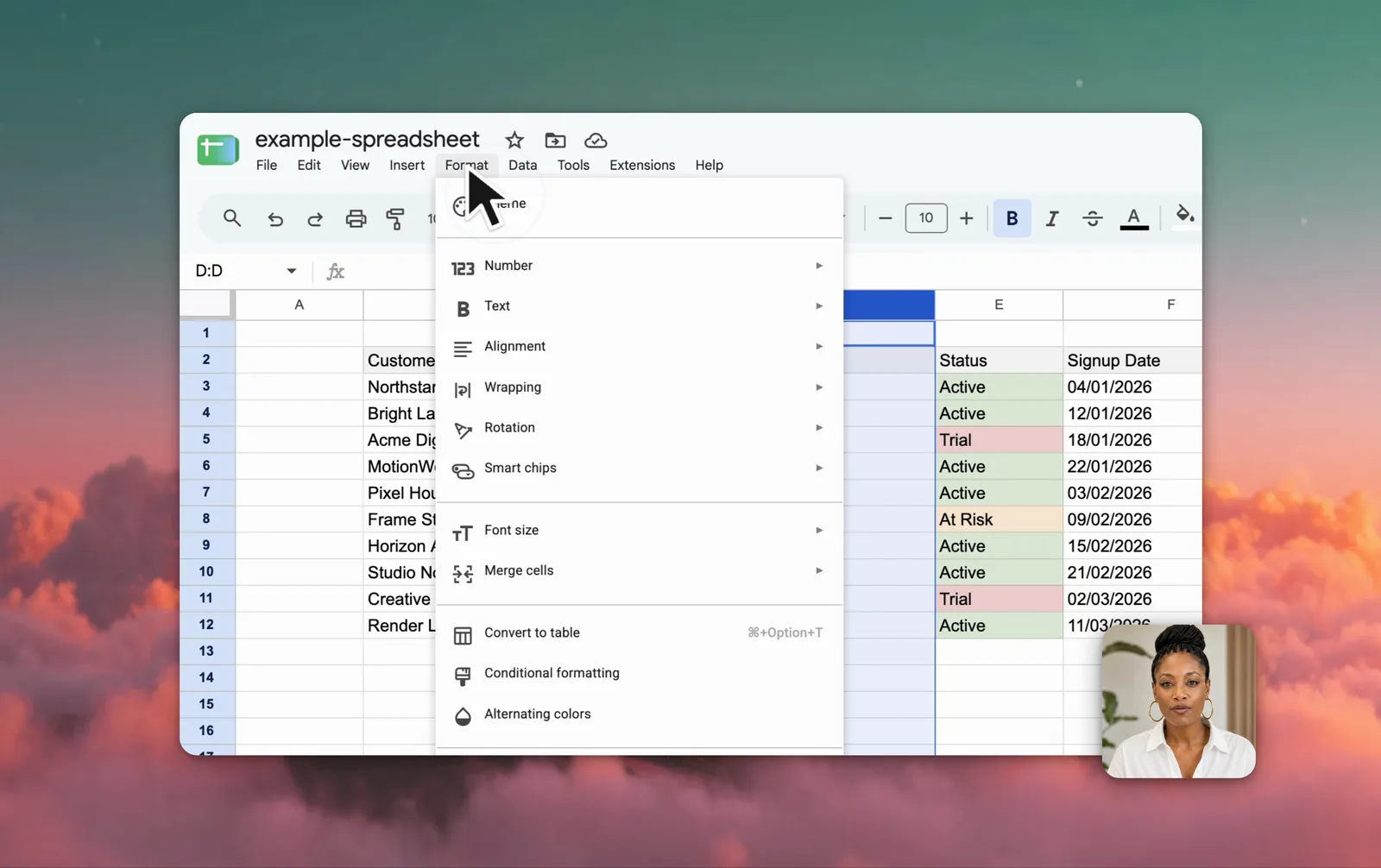
- Add your camera and microphone if a face and a voice help the demo. Screen Recorder records the camera as its own track, and it makes English captions from the microphone on your Mac.
- Record the steps in order. Move the cursor slowly, and pause for a second after each important click.
- Edit. The editor opens when you stop. Split out mistakes, check the zoom, and place the camera over or beside the screen.
- Export an MP4 at the original size, or at 1080p or 4K. See how to export an MP4.
How do you keep a demo readable?
Record a selected area around the part of the interface in use, rather than the entire display. Screen text in a full-display capture becomes hard to read once the video is scaled to a phone.
Let the zoom do the pointing. A zoom toward the button you click tells the viewer where to look faster than an arrow or a circle.
Captions help in two places: on a landing page where the video plays muted, and for viewers who watch without sound in an open office.
Where do product demo videos go?
- A landing page or a pricing page, next to the claim the video proves.
- A sales email or a follow-up, as a link to the file in your own storage or video host.
- A launch post, where a short demo shows the new feature working.
- A help centre, where the same recording becomes a how-to for existing users.
For a phone-first channel, use a camera layout with the camera above or below the screen. It gives a tall 9:16 frame. See screen recording for social videos.
Keep it honest: Record the real product on real data. A staged screen is obvious, and it costs trust.
Frequently asked questions
How long should a product demo video be?
Keep a product demo to the length of one problem solved end to end, which is usually under two minutes. A long feature tour loses viewers before the value is clear.
Should a product demo show every feature?
No. A demo that tours every feature shows the product without showing the point of it. One problem solved completely is more convincing than six features listed.
What should a product demo open with?
Open on the problem, not the product. A viewer who recognises the problem in the first few seconds will watch the solution.
What is the best way to record a SaaS demo video?
Use a demo account with realistic data, record a selected area around the browser window, turn on automatic zoom so small interface text stays readable, and check every frame for private data before you export.
Do I need a separate video editor for a product demo?
Not with Screen Recorder. The recording opens in its timeline editor, where you split out mistakes, adjust the zoom, place the camera, add captions, and export an MP4.
Keep learning